


Print is still one of the most effective channels for many organizations – and the handover to the lettershop is where good segments often break. Umlauts turn into strange characters, the delimiter doesn’t match, two letters go to one household, someone who gave last week receives an appeal, and nobody can say afterwards who was actually mailed. A clean export from Salesforce is less about the button and more about the process around it. This guide covers the file format, the fields, households, suppressions, versions, control groups and data protection – with a checklist you can send to your lettershop.
Why export still matters
Email tools connect to Salesforce through integrations. Lettershops and mailing houses usually don’t – they want a file. Print appeals, catalogs, invitations, year-end letters and renewal reminders all start with an export. That makes the export the last point where you control the selection, and the first point where errors become expensive: print and postage are paid per piece.
Native ways to export from Salesforce
| Way | How | Watch out for |
|---|---|---|
| Campaign member report | Report on campaign members, export “details only” as Excel or CSV | Manual for every mailing; limited control over encoding and delimiter |
| Report on contacts or leads | Export directly from a report | No record of who was mailed unless you also add them to a campaign |
| Data Loader | Export with a query | Needs admin skills; good for very large files |
| List views | Selection and campaign assignment | No native file export in Lightning |
All of them work. None of them handles the steps before the export – prioritization, households, suppressions – or keeps a record of the selection automatically.
The file: format, encoding, delimiter
Agree on the format once, write it down and use it for every mailing.
- File type: Excel workbooks are easy to check; CSV is what most lettershop systems import.
- Encoding: names and addresses with umlauts or accents break when the encoding doesn’t match. Excel typically reads UTF-8 with a byte order mark (BOM) correctly; some older systems expect Windows-1252.
- Delimiter: comma or semicolon – in many European countries, Excel uses the semicolon by default.
- Leading zeros: postal codes like 01067 lose their zero when opened in Excel as numbers. Keep them as text and tell the lettershop not to reformat.
- File naming: appeal, segment, date and version – e.g.
SP27_print_LYBUNT_v2_2027-03-02.csv.
The fields a lettershop needs
| Field | Why |
|---|---|
| Unique ID (contact or record ID) | To match responses, returns and gifts back to Salesforce |
| Salutation and greeting | “Dear Ms. Becker” or a household greeting like “Dear Anna and Tom” |
| Name | First name, last name, title |
| Address lines | Street, address addition, postal code, city, country |
| Version or source code | Which letter, which segment – printed on the reply form |
| Personalization fields | Only what the letter actually uses, e.g. last gift amount or suggested amount |
Decide which address to use – mailing or billing address, person or household – and use the same rule every time.
Before the export: the steps that decide quality
- Prioritize segments. A record that qualifies for several segments belongs to the highest one – one letter, not three.
- One mailing per household. Collapse households or shared addresses where you mail households – see one mailing per household.
- Apply suppressions. Deceased, do not mail, do not solicit, recent responders, records without a complete address.
- Assign versions and codes. Letter A/B, segment codes, source codes – as fields in the file, not as separate files nobody can match later.
- Hold back a control group. A random share of each segment that doesn’t receive the letter shows what the mailing really caused – see fundraising appeals with Salesforce campaigns.
- Refresh right before the export. Selections pulled weeks before the drop include people who responded in the meantime.
- Record the selection. Keep exactly the exported records in a Salesforce campaign with the status “Sent”, so responses and gifts can be attributed.
Data protection
- Data processing agreement: in the EU, a lettershop processing personal data on your behalf usually needs one under the GDPR.
- Minimal fields: export only what the letter needs – no gift history, no notes, no internal IDs beyond the matching key.
- Secure transfer: encrypted file transfer or a secure portal, never an email attachment.
- Deletion: agree when the lettershop deletes the file after production.
After the mailing: close the loop
- Returns: undeliverable letters come back – update addresses or flag them in Salesforce.
- Responses: gifts, orders or registrations with the source code are attributed to the campaign.
- Measure: compare the mailed group with the control group, per segment and version.
Exporting audiences with Campaign Audience Builder
Campaign Audience Builder prepares the selection in Salesforce and exports it in the format your lettershop needs:
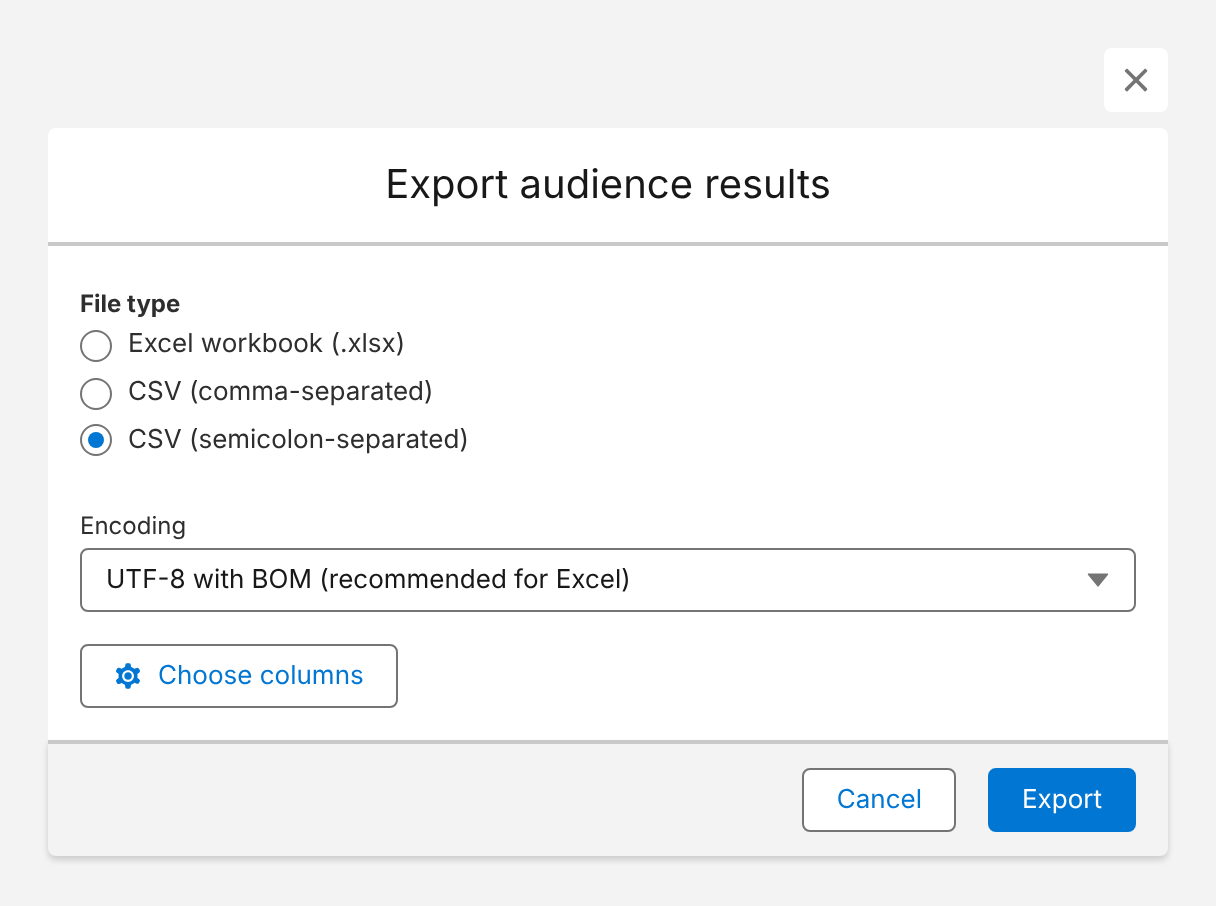
- Excel or CSV: comma- or semicolon-separated, in UTF-8, UTF-8 with BOM or Windows-1252.
- Your columns: choose exactly the fields the lettershop needs.
- Documented: Excel exports can include a sheet with the audience definition and run metadata – useful for agencies and audits.
- Everything before the export: priority sequences, household deduplication, suppressions from the Filter Library, random subsets and control groups.
- The campaign as record: the same audience fills a Salesforce campaign, so you know who was mailed and can measure the result.
Here is the export dialog – a semicolon-separated CSV in UTF-8 with BOM, ready for Excel and most lettershop systems:
Conclusion
A good print export is agreed once and repeated every time: the same file type, encoding and delimiter, the same fields, the same rules for households, suppressions and versions – and the selection recorded in Salesforce. Prepare the audience in Salesforce, refresh it right before the export, send only what the letter needs, and close the loop with returns and responses. That’s how the segment you built is the segment that arrives in mailboxes.
 Campaign Audience Builder
Hand your lettershop a clean file in minutes
Campaign Audience Builder produces the lettershop file in the format the mailing house asks for – deduplicated and with the selection documented.
- Excel or CSV in the format you need
- One record per person or household
- Add 50,000+ campaign members in one run
FAQ
How do I export campaign members from Salesforce?
Create a campaign member report, filter it on the campaign, add the fields you need and export it with the details only option as Excel or CSV. For large or recurring exports, Data Loader or an app with a dedicated export works better than reports.
Why do umlauts and accents break in my CSV export?
Because the file was saved in one encoding and opened in another. Excel often expects UTF-8 with a byte order mark (BOM) or the older Windows-1252 encoding. Ask your lettershop which encoding its system reads and export exactly that.
Comma or semicolon – which delimiter should a CSV use?
Whatever the recipient's system expects. In many European countries, Excel uses the semicolon because the comma is the decimal separator. Agree on the delimiter with your lettershop and keep it the same for every mailing.
Which fields does a lettershop need?
At minimum a unique ID, salutation or greeting, name, address lines, postal code, city and country, plus a version or source code for each record. Send only the fields needed for the mailing – that's both cleaner and required by data protection rules.
Do I need a data processing agreement with my lettershop?
In the EU, a lettershop processing personal data on your behalf usually requires a data processing agreement under the GDPR. Transfer files securely, send only the fields required and agree when the data will be deleted.